
Configuration - AI Analytics Insights
Buy NowOpen NopAdvance → Plugins → Agentic Commerce Core → Configuration. The page is grouped into AI Provider Setting, and Privacy Settings (same pattern as other NopAdvance plugins such as the Documentation plugin configuration guide).
AI Provider & Privacy Settings
This user guide explains how to configure AI Provider Settings and Privacy Settings in the nopCommerce AI Analytics & Insights plugin.
Configuration Screen
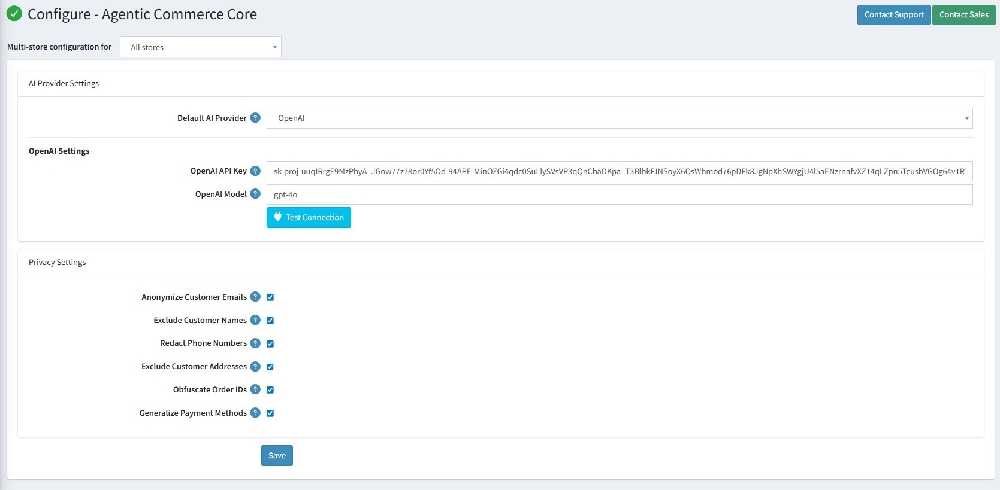
1. AI Provider Settings
- Default AI Provider: Select the default AI provider from the dropdown list. Example: OpenAI.
- OpenAI API Key: Enter a valid OpenAI API Key to establish a secure connection with the OpenAI service.
- OpenAI Model: Specify the AI model name to be used for analytics processing. Example: gpt-4o.
- Test Connection Button: Click the 'Test Connection' button to verify whether the API Key and AI model configuration are working correctly.
2. Privacy Settings
- Anonymize Customer Emails: Enable this option to hide or anonymize customer email addresses before sending data to the AI provider.
- Exclude Customer Names: Enable this setting to prevent customer names from being included in AI requests.
- Redact Phone Numbers: Enable this option to mask customer phone numbers in AI-generated data processing.
- Exclude Customer Addresses: Enable this setting to remove customer addresses from AI requests.
- Obfuscate Order IDs: Enable this option to hide or randomize order IDs for better privacy protection.
- Generalize Payment Methods: Enable this setting to replace exact payment method details with generalized values.
- Show AI Disclosure Banner: Enable this option to display an AI disclosure message to users.
- Custom Disclosure Banner Text: Enter a custom message that will be displayed in the AI disclosure banner.
- Privacy Policy URL: Provide the URL of the privacy policy page related to AI usage and data handling.
- Require Disclosure Acknowledgment: Enable this option to require users to acknowledge the disclosure message before proceeding.
- Enable Data Transmission Audit Log: Enable this setting to maintain logs for AI-related data transmission activities.
3. Save Configuration
After updating all required settings, click the 'Save' button to store the configuration changes.
Example Workflow
- Open the nopCommerce admin panel.
- Navigate to Plugins > AI Core Settings.
- Select the required AI provider.
- Enter the API Key and AI model.
- Click 'Test Connection' to verify the connection.
- Configure privacy-related options based on business requirements.
- Click the 'Save' button to apply the settings.
AI Prompt Usage Tracking & Activity Monitoring
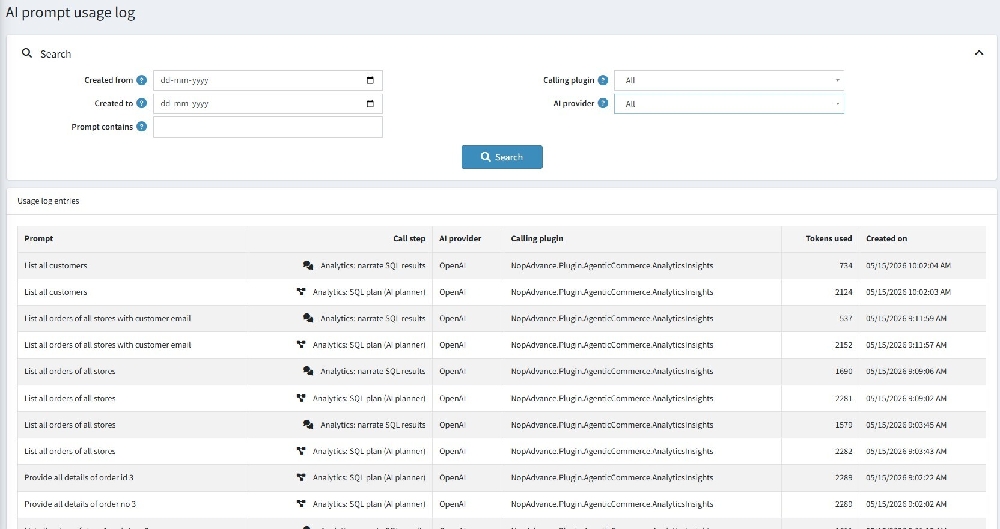
Track and monitor AI-powered analytics activities from a centralized prompt usage log. Review prompt history, AI usage, token consumption, connected plugins, and analytics requests to improve visibility, workflow management, and AI operations within nopCommerce.
Open NopAdvance → Plugins → AI Analytics & Insights → Configuration. The page is grouped into General Settings, AI Provider, and Behavior Settings cards (same pattern as other NopAdvance plugins such as the Documentation plugin configuration guide).
General Settings
- Enable AI Analytics & Insights: Turns the agent and related admin features on or off for the selected store scope. When disabled, staff should not rely on the conversational analytics workflow.
- Default lookback days: When a question does not imply a specific date range, the plugin uses this many calendar days ending “today” as the default analysis window. Increase for longer trend questions; decrease for faster loads on busy stores.

🤖 AI Provider
Default API keys and the primary provider are configured in Agentic Commerce Core. The info alert on this card links to Admin/NopAdvanceAgenticCommerceCore/Configure so you can confirm the shared provider name (for example OpenAI or Claude) before testing.
- Override AI provider: Leave empty to use the default provider from Agentic Commerce Core. Choose a value from the dropdown only when this plugin should call a different registered provider than the core default for the same store scope.
- Test Connection: Submits the form with a connection test: verifies that a provider is configured for this scope. If no provider is available, fix Agentic Commerce Core (or the override) first. On success, the override selection may be persisted as noted in the admin notification.

Behavior Settings
- Temperature: Model randomness. Lower values (for example 0.2–0.4) suit numeric reporting; higher values add variation at the cost of consistency.
- Max tokens: Upper bound on completion length from the provider. Raise if answers truncate; lower to reduce cost and latency.

What’s next?
Open Dashboard under the same plugin menu to run natural-language queries. Use Prompts to curate reusable starter questions. Keep Agentic Commerce Core credentials current and review Allow sending store data to external AI with your legal and security stakeholders before enabling it on production.